How to maximise the impact of the new ‘Featured’ section in your profile
Time for a little LinkedIn learning. Learn how to get your posts, articles, links or media noticed with LinkedIn’s new ‘Featured’ section. If you’ve got some important information you want to feature, or maybe some work you’re proud of and want to showcase on your profile, LinkedIn’s got you covered!
The Featured section is a place for you to showcase some of your posts and articles, or even add photos, documents, and links for others to see. It shows up just below your ‘About’ section so it’s likely to capture profile viewers’ attention. This section is handy for lead generation, especially if you feature certain posts, articles, links or media related to your business.
Here’s how to add to your Featured section:
- Navigate to your own profile on LinkedIn, and scroll down to the ‘Featured’ section
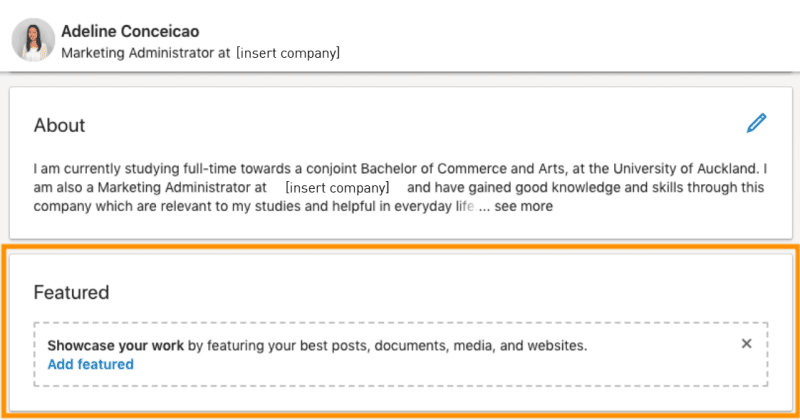
2. Click ‘Add featured’. You’ll see the options for what you can add (Posts, Articles, Links, Media)
3. Click the relevant ‘plus’ sign to add the content
4. Once you’ve selected a post/article, or added a link or media, click Save. Your content will now show up in your Featured section!
5. You can add more content by clicking the ‘plus’ sign
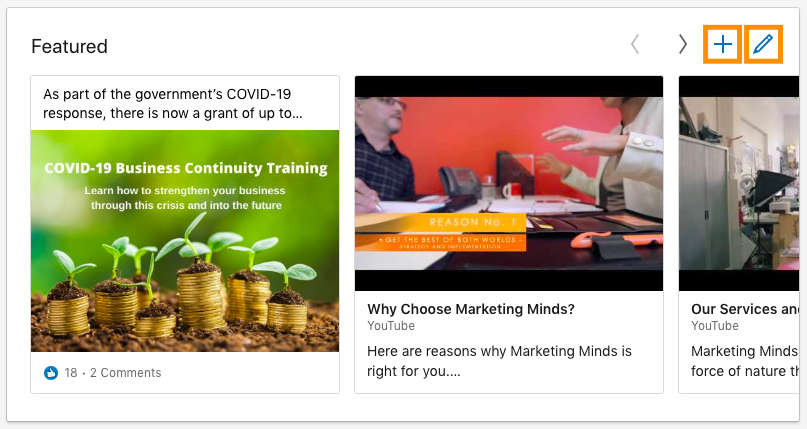
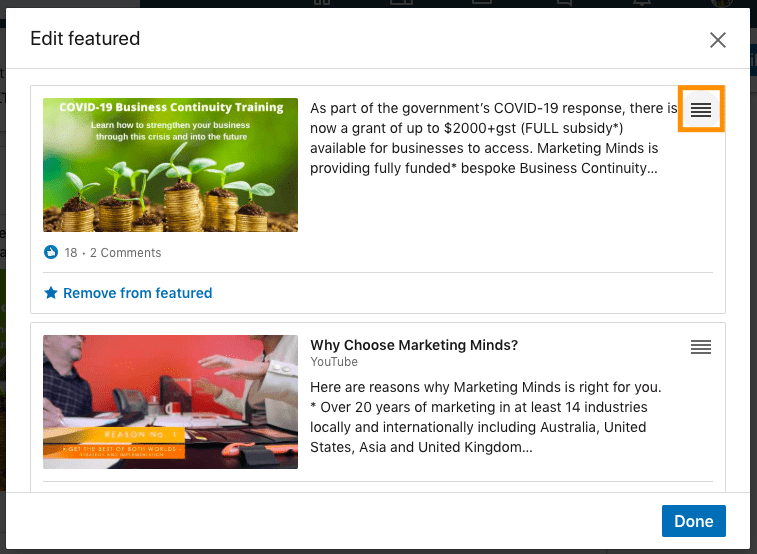
6. You can reorder the content by clicking the pencil icon and dragging the content using the icon on the right of it. Click Done to save.
Edit, remove, and reorder content using these buttons:
Reorder content by clicking and dragging the icon on the right:
LinkedIn Learning things to note:
- You can only feature posts you’ve authored or re-shared, and articles you’ve published on LinkedIn
- You can feature as much content as you’d like; there’s no limit
- Place your most important/valuable content first. The first 2-3 things will be immediately visible to viewers without them having to scroll
- Visibility of your Featured section is dependent on your visibility settings. i.e. if your posts/articles are limited to connections only, then only they will be able to view it in your Featured section.
______________________________________________________________________________________
Your business could qualify for partial government grant with Marketing Minds Digital Marketing Success programme.
If you want some more personalised advice on reaching your marketing objectives, or if you have any other questions, call us at +64 9 6344 390, email hello@objective.co.nz or contact us.
Want more tips on LinkedIn for business? Check out these articles:
- Creating an event on LinkedIn
- Training on LinkedIn: 6 Handy Direct Messaging Features
- Inviting connections to follow your LinkedIn company page
Want more articles relevant to email marketing and digital marketing strategy? Here’s our smorgasbord:
- What is digital marketing?
- Which Email Marketing Provider is Right for your Small Business?
- How to Choose the Right Social Media Platforms
Never miss an article! Google now lets you choose trusted websites you would like to see more often in Search. Just add Objective.co.nz as a preferred source now →
If you’ve found this article useful, please share it with others.
