Direct Messaging – make the most out of it
Whether you’re using LinkedIn for business or just personal use, you’re likely to use the messaging component – but are you tapping into its full potential? In this LinkedIn Learning Tip, we’ve put together a list of useful messaging features to add to your training on LinkedIn. From video messaging to setting up virtual business meetings and creating group chats, here are six features to help you make the most out of LinkedIn messaging…
Acknowledgement: Thank you to Chris Szeto for his LinkedIn Blog on ‘New Features To Make Your LinkedIn Messaging Experience Even Better’ for providing the core ideas of this article.
1. Set up a virtual meeting
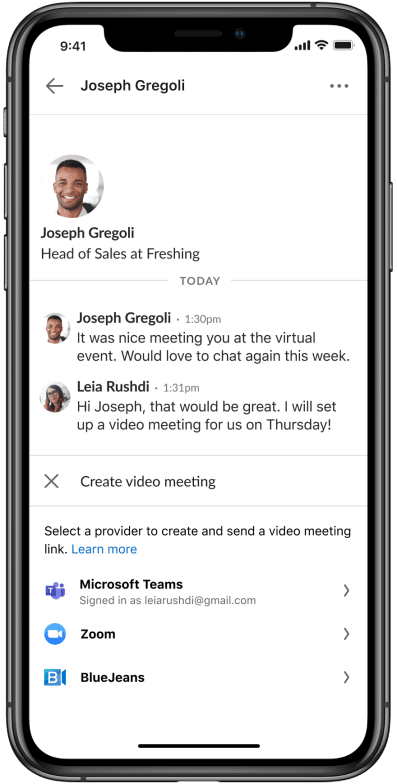
With many businesses moving to online and virtual work methods, the demand for video meetings has grown. You are now able to set up a video meeting through LinkedIn messages – in both one-on-one and group chats. Choose from Microsoft Teams, Zoom, or BlueJeans; and create an instant meeting or schedule one for later. Your meeting invite will be sent directly through the chat! Alternatively, if you’re looking to host an online workshop or seminar with a wider audience, you can create an event on LinkedIn.
Here’s how: in a new or existing conversation, click the video icon next to where you type a message. Select the platform you’d like to use (Microsoft Teams, Zoom, or BlueJeans) and follow the prompts to sign in.
Source: New Features To Make Your LinkedIn Messaging Experience Even Better
2. React to messages with an Emoji
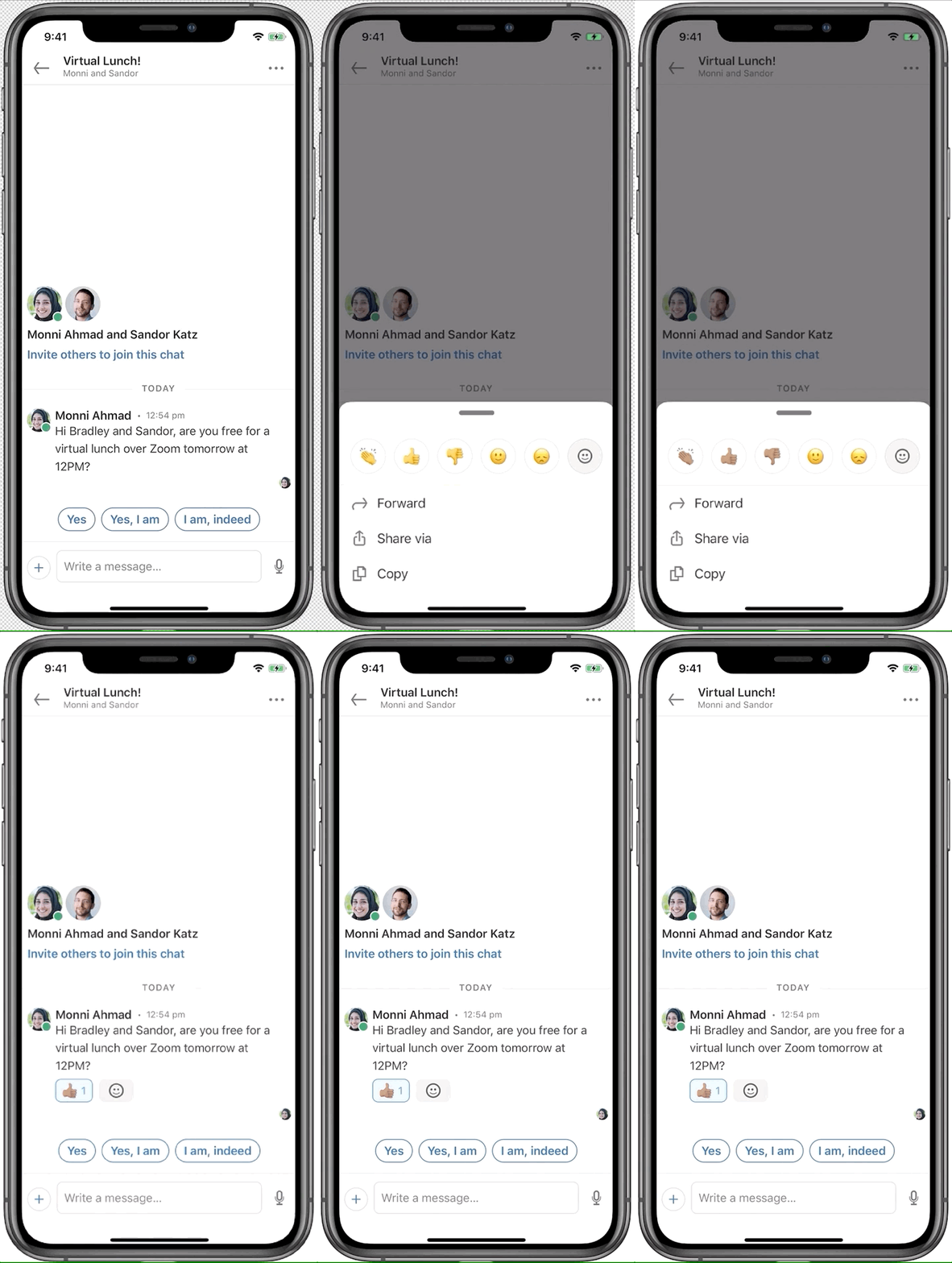
Are words just not enough to express your thoughts on a message? Just want to give a quick thumbs up rather than continue the conversation? Our LinkedIn learning tip: react to a message with an Emoji! 👌
Here’s how: on mobile, just press and hold or double tap a message to bring up the emoji reaction options. On desktop, simply hover over a message.
Source: New Features To Make Your LinkedIn Messaging Experience Even Better
3. Bulk manage messages
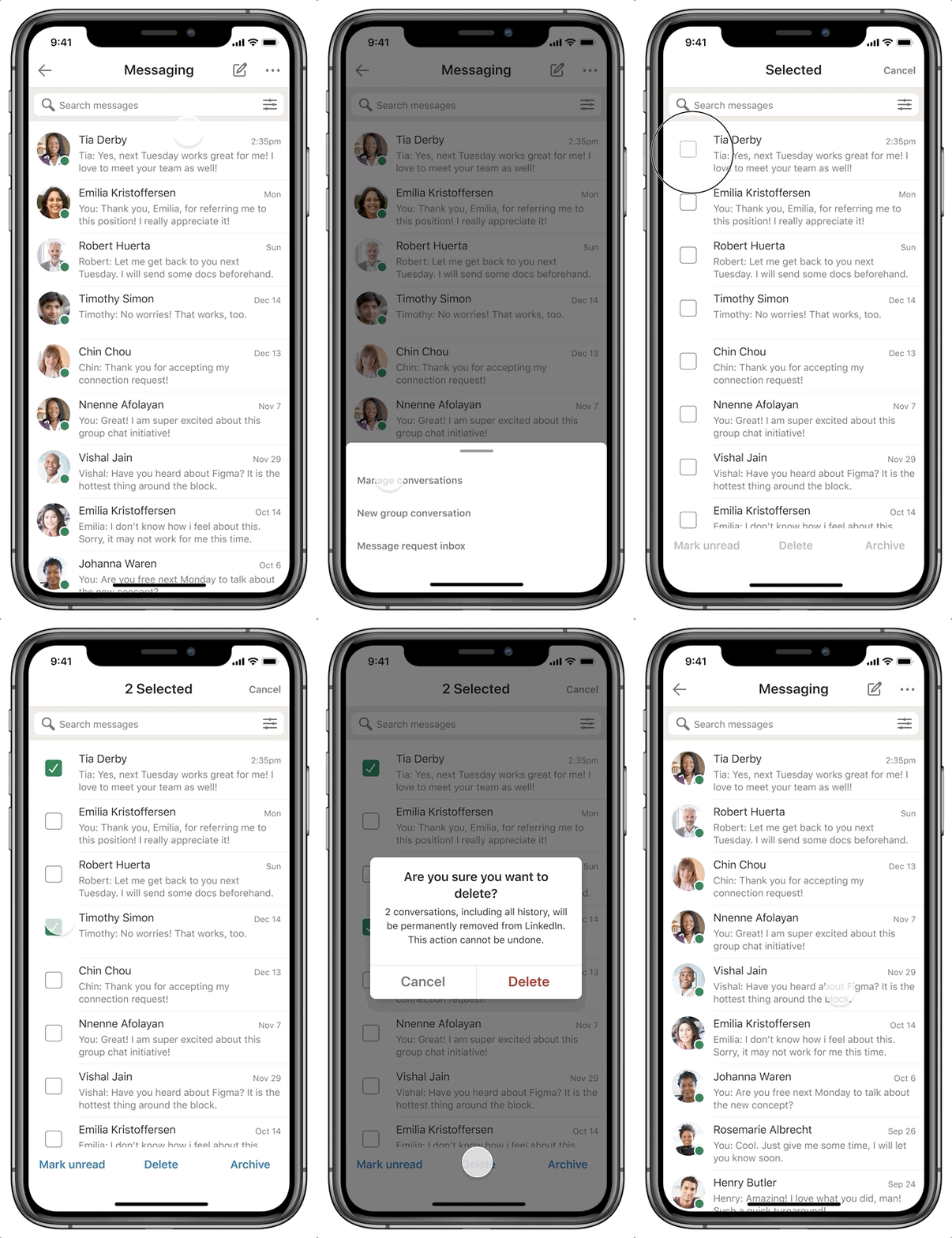
If you like to keep a ‘zero unread messages’ inbox or want to remove older messages in bulk, LinkedIn has made it easier to select multiple conversations at a time to archive, delete, or mark as read/unread. This is particularly handy if you’re using LinkedIn for business purposes such as lead generation.
Here’s how: on mobile, tap ‘…’ in the top right corner of your messages inbox, and select ‘Manage conversations’. Alternatively, you can press and hold on a message until the checkboxes pop up next to each message. Check the boxes of each message you want to manage, and select either Mark unread, Delete, or Archive. On desktop, you can do the same by clicking ‘…’ or hovering over a contact’s image to bring up the checkboxes.
Source: New Features To Make Your LinkedIn Messaging Experience Even Better
4. Create a group chat
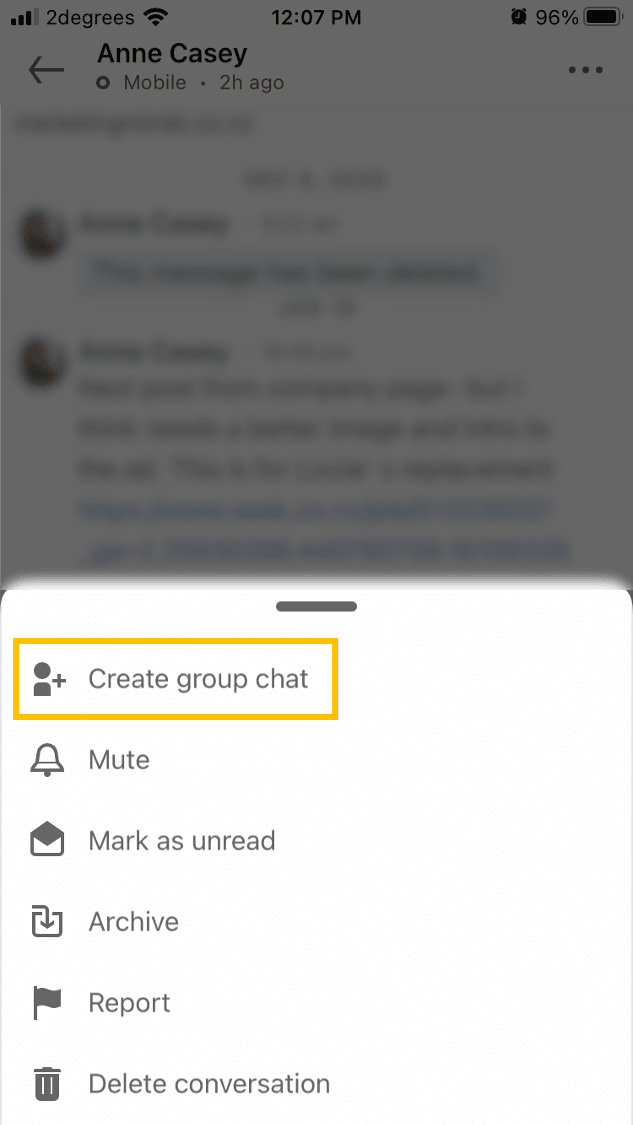
Whether you want to make an introduction or loop others into a conversation, you can now invite others to join a conversation while ensuring the original conversation history remains private.
Here’s how: in an existing conversation, select the ‘…’ in the top right corner and click ‘Create group chat’, then select who you’d like to add to the conversation. You can also create a new group conversation by clicking the pencil symbol at the top right of your Messaging screen.
5. Send a video message (only on mobile)
Want to send something more exciting than a simple message? Instant video messages are a great way of capturing exactly what you want to get across.
Here’s how: go into a conversation and click the + sign. Select the video option and record your video message.
6. Send a voice message (only on mobile)
Too busy for a phone call or too lazy to type? Why not send a voice message! You can now easily record and send a voice message through your LinkedIn chats.
Here’s how: go into a conversation and hold down the microphone symbol to record your voice message. Release the button when you’re finished, and your voice message will be sent straight away. If you’re in the middle of recording and want to cancel, just slide your finger away from the icon and release.
______________________________________________________________________________________
Your business could qualify for partial government grant with Marketing Minds Digital Marketing Success programme.
If you want some more personalised advice on reaching your marketing objectives, or if you have any other questions, call us at +64 9 6344 390, email hello@objective.co.nz or contact us.
Want more tips on LinkedIn for business? Check out these articles:
Want more articles relevant to email marketing and digital marketing strategy? Here’s our smorgasbord:
- What is digital marketing?
- Which Email Marketing Provider is Right for your Small Business?
- How to Choose the Right Social Media Platforms
Never miss an article! Google now lets you choose trusted websites you would like to see more often in Search. Just add Objective.co.nz as a preferred source now →
If you’ve found this article useful, please share it with others.
